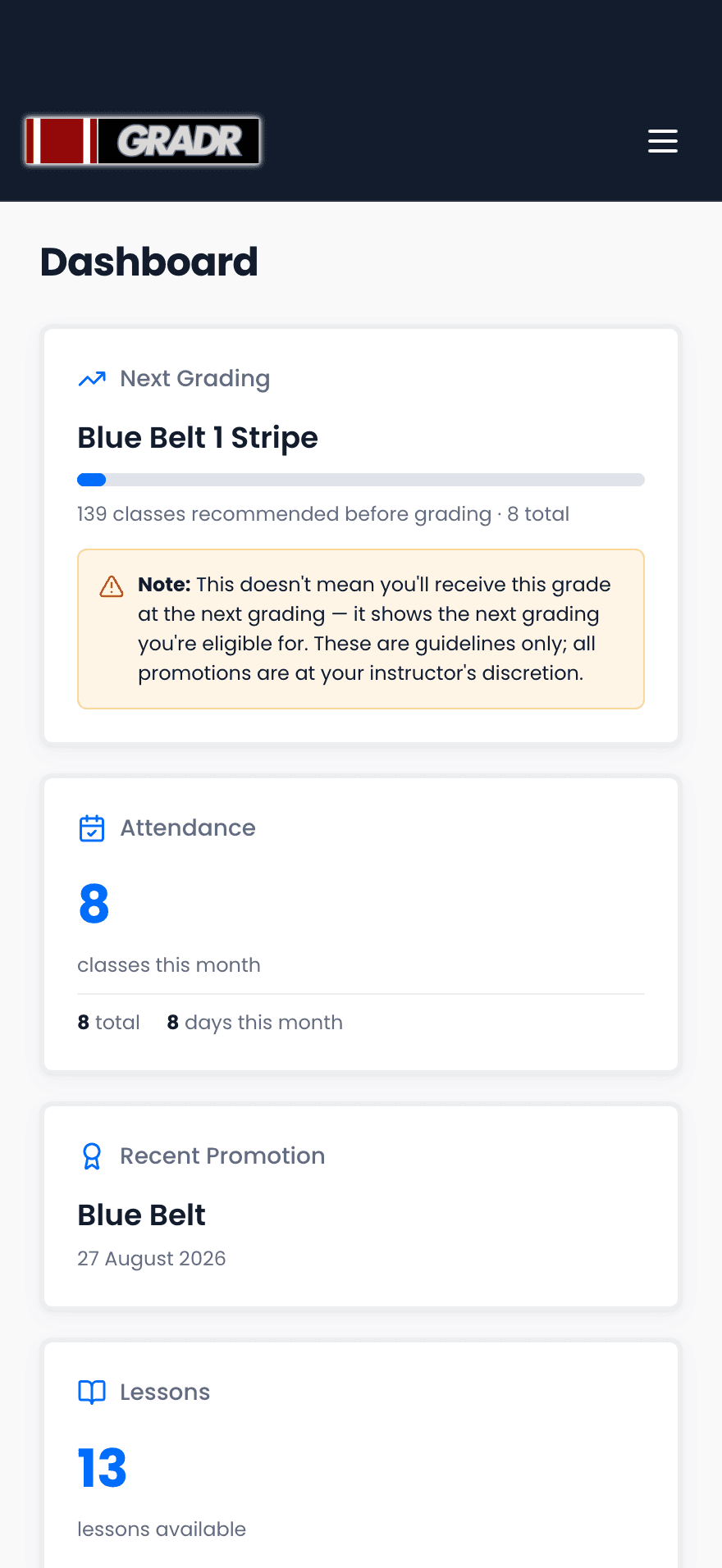
First, sign in and open your own dashboard
Before you save anything, open the GRADR sign-in page in your phone’s browser, sign in, and go to your own dashboard.
Then save the icon from that page, not from this one.
On an iPhone or iPad
Use Safari. Chrome and Firefox on an iPhone cannot add an icon to the home screen. The option is not there.
- In Safari, sign in to GRADR and open your own dashboard, so that is the page on screen rather than this guide.
- Tap the Share button, the square with an arrow pointing up, at the bottom of the screen (or top right on an iPad).
- Scroll down the list and tap Add to Home Screen.
- Check the name it offers. Saved from your student portal it reads GRADR Student; saved from a gym dashboard it reads GRADR. Tap Add in the top right.
The icon appears on your home screen. Tapping it opens GRADR full screen, with no Safari address bar.
On an Android phone
Use Chrome. Android installs GRADR as a real app rather than a bookmark, so it behaves like anything else on your phone.
- In Chrome, sign in to GRADR and open your own dashboard, so that is the page on screen rather than this guide.
- Tap the three-dot menu in the top right.
- Tap Install app, then confirm. Some versions of Chrome word this as Add to Home screen instead. Either one gives you the same result.
Chrome may also offer the install by itself, as a banner at the bottom of the screen. Tapping that does the same job.
What you end up with
If you train at a gym, an icon named GRADR Student that opens straight to your dashboard: your attendance, your curriculum, and your progress toward the next belt or stripe. It runs full screen, so it feels like an app rather than a web page.
If you run a gym
The steps are identical. Sign in to your gym dashboard first, then save it the same way. Your icon is named GRADR and opens to the owner dashboard rather than the student portal.
If you are a coach who also trains as a student, you can install both. Save the icon once from your gym dashboard and once from your student portal. You end up with two icons, GRADR and GRADR Student, each opening to its own side of the app.
If something looks wrong
The icon on my iPhone is the old one
iPhones keep a copy of a home-screen icon and never refresh it on their own. Press and hold the saved icon, delete it, then follow the steps above again. If it still shows the old picture, open the Settings app, find Safari (on newer iPhones it sits under Apps), tap Clear History and Website Data, then save it again.
Android is not offering to install anything
Check that you are using Chrome rather than another browser. If the menu still shows nothing, GRADR is most likely installed already, so look for the icon before trying again. Chrome also stops offering for a while once you have dismissed the prompt, so it can be worth leaving it and coming back.
The icon opens a login screen
Signing in again from that screen is normal. Sessions expire, and the app will remember you afterwards. If it happens on every single tap, the icon was probably saved from the wrong side of GRADR: an icon saved from a gym dashboard opens to the owner dashboard, which a student account cannot reach. Delete the icon, open your own dashboard, sign in, and save it again from there.
Still stuck? Get in touch and we’ll help you get it onto your phone.